
How to Fix “This Page Isn’t Working HTTP Error 431” and Other Browser Cache Issues in Shopify
Philo Hermans
Full Stack Developer @ AppHive
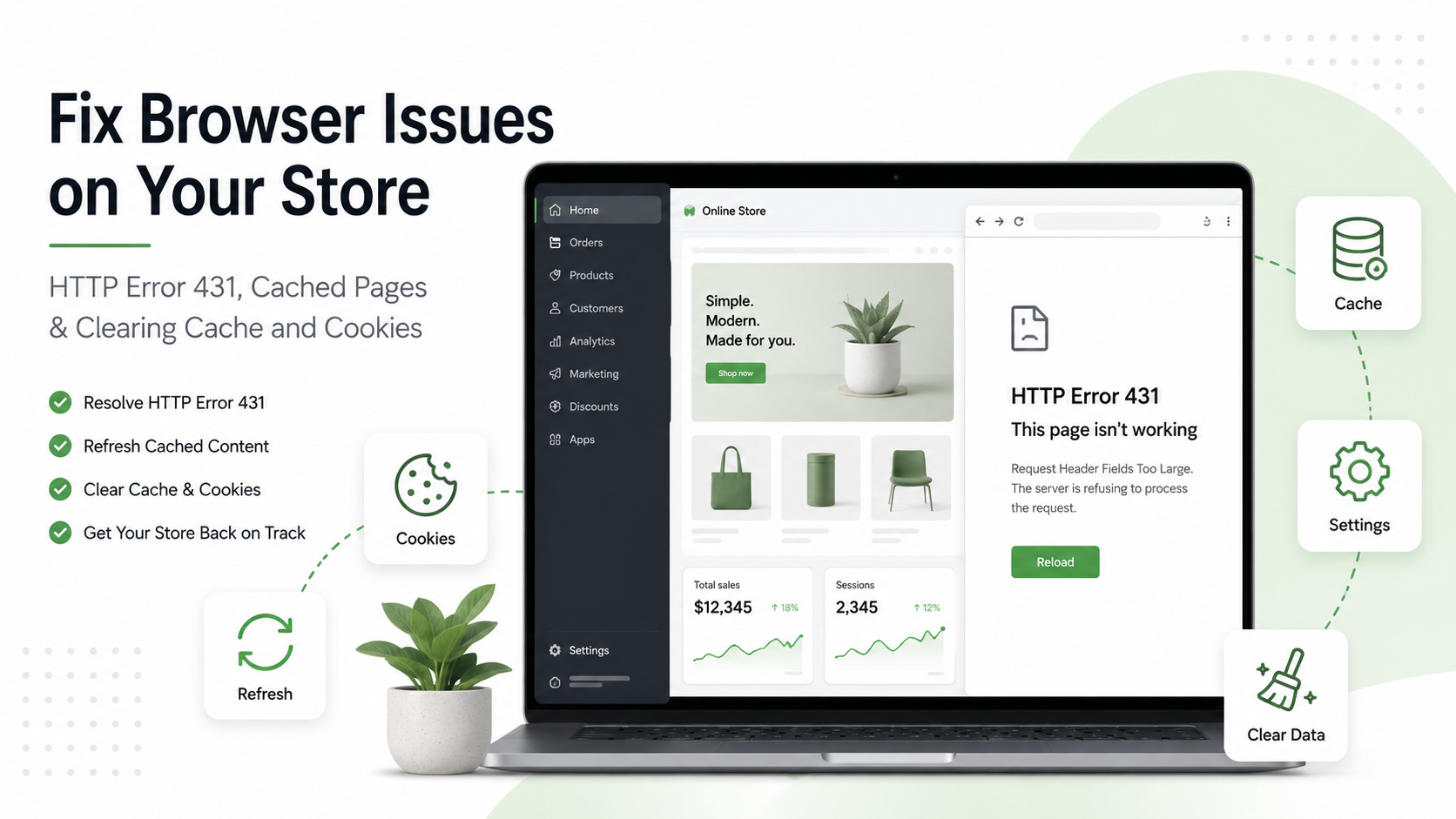
Sometimes Shopify pages, apps, checkouts, or admin screens may stop loading correctly. You might see an error like:
This page isn’t working
HTTP Error 431
Or you may notice that recent changes do not appear, buttons do not respond, previews look outdated, or an app behaves strangely.
In many cases, the problem is caused by old browser data: cached files, cookies, or stored site data. The good news is that this is usually easy to fix.
What Does HTTP Error 431 Mean?
HTTP Error 431 usually means that the browser is sending too much information to the server in the request headers.
In plain English: your browser may be sending too many cookies or too much stored data for that website.
This can happen after using the same Shopify store, Shopify app, or Shopify admin area for a long time. Over time, your browser stores cookies and site data. If that data becomes too large, outdated, or corrupted, certain pages may stop working correctly.
A common fix is to clear the cookies and cache for the affected site.
Common Issues This Can Fix
Clearing your browser cache and cookies can help with issues such as:
- “This page isn’t working”
- “HTTP Error 431”
- Shopify admin pages not loading
- Shopify app pages not opening
- Checkout or cart pages behaving unexpectedly
- Theme changes not showing
- App settings not updating visually
- Old versions of scripts or styles still loading
- Login or redirect loops
- Buttons, forms, or previews not responding correctly
Before You Clear Everything
Before clearing all browser data, try these quick steps first:
- Refresh the page.
- Open the page in a private or incognito window.
- Try a different browser.
- Log out of Shopify and log back in.
- Restart your browser.
If the issue disappears in a private window or another browser, it is very likely caused by cache, cookies, browser storage, or browser extensions.
Option 1: Clear Cache and Cookies for One Website
This is usually the best first step because it avoids logging you out of every website.
For Shopify-related issues, you may want to clear site data for:
- shopify.com
- myshopify.com
- Your own store domain
- The app domain, if the issue happens inside a Shopify app
For example, if your store is:
example.myshopify.com
You can clear site data for that domain.
Option 2: Clear All Cache and Cookies
If clearing data for one site does not work, you can clear all cached files and cookies.
Important: this may sign you out of websites and remove saved site preferences.
It will not delete your Shopify store data, orders, products, customers, themes, or settings. It only removes data stored locally in your browser.
How to Clear Cache and Cookies in Popular Browsers
Google Chrome
Clear cache and cookies
- Open Chrome.
- Click the three dots in the top-right corner.
- Click Delete browsing data.
- Choose a time range.
- For a full reset, choose All time.
- Select:
- Cookies and other site data
- Cached images and files
- Click Delete data.
- Close and reopen Chrome.
Clear data for one Shopify site only
- Open Chrome.
- Go to Settings.
- Go to Privacy and security.
- Open Third-party cookies or Site settings.
- Click See all site data and permissions.
- Search for the affected domain, such as:
- shopify.com
- myshopify.com
- Your store domain
- Delete the site data.
- Reopen the affected page.
Safari on Mac
Clear website data
- Open Safari.
- In the top menu, click Safari.
- Click Settings.
- Go to the Privacy tab.
- Click Manage Website Data.
- Search for the affected domain, such as:
- shopify.com
- myshopify.com
- Your store domain
- Select the website.
- Click Remove.
- Restart Safari.
Clear all website data
- Open Safari.
- Go to Safari > Settings > Privacy.
- Click Manage Website Data.
- Click Remove All.
- Restart Safari.
Microsoft Edge
Clear cache and cookies
- Open Edge.
- Click the three dots in the top-right corner.
- Go to Settings.
- Open Privacy, search, and services.
- Under Clear browsing data, click Choose what to clear.
- Choose a time range.
- For a full reset, choose All time.
- Select:
- Cookies and other site data
- Cached images and files
- Click Clear now.
- Restart Edge.
Shortcut
You can also press:
Ctrl + Shift + Delete
On Mac, try:
Command + Shift + Delete
Then select cookies and cached files.
Mozilla Firefox
Clear cookies and cache
- Open Firefox.
- Click the menu button in the top-right corner.
- Go to Settings.
- Open Privacy & Security.
- Scroll to Cookies and Site Data.
- Click Clear Data.
- Select:
- Cookies and Site Data
- Temporary cached files and pages
- Click Clear.
- Restart Firefox.
Clear data for one website
- Open Firefox.
- Go to Settings.
- Open Privacy & Security.
- Under Cookies and Site Data, click Manage Data.
- Search for the affected domain.
- Select it.
- Click Remove Selected.
- Save changes and restart Firefox.
Extra Troubleshooting for Shopify Merchants
If clearing cache and cookies does not solve the issue, try the following.
1. Check in an Incognito or Private Window
Open your Shopify admin, storefront, or app in a private browsing window.
If it works there, the issue is probably caused by:
- Browser cache
- Cookies
- Browser storage
- Browser extensions
- Stored login or session data
2. Disable Browser Extensions
Some browser extensions can interfere with Shopify, especially:
- Ad blockers
- Privacy extensions
- Script blockers
- Translation extensions
- Password managers
- Coupon extensions
- Developer tools extensions
Try disabling extensions temporarily and reload the page.
3. Try Another Browser
If the issue happens in Chrome, try Safari, Edge, or Firefox.
If the page works in another browser, the issue is probably local to the original browser.
4. Hard Refresh the Page
A hard refresh forces the browser to reload files instead of using cached ones.
Windows
Ctrl + F5
or:
Ctrl + Shift + R
Mac
Command + Shift + R
Final Tip
If you are a Shopify merchant and something suddenly looks broken, outdated, or stuck, your browser may simply be showing old information or sending outdated cookies.
Clearing cache and cookies is one of the fastest and safest first steps to get Shopify, your storefront, or an installed app working normally again.